Blog
Product
Why Your Meeting Copilot Should Be Invisible to Screen Sharing
Raven's stealth overlay is completely invisible to Zoom, Meet, Teams, and Discord screen sharing - and it's on by default. Here's how it works and why it matters.

Chaitanya Laxman
Product
Mar 2, 2026
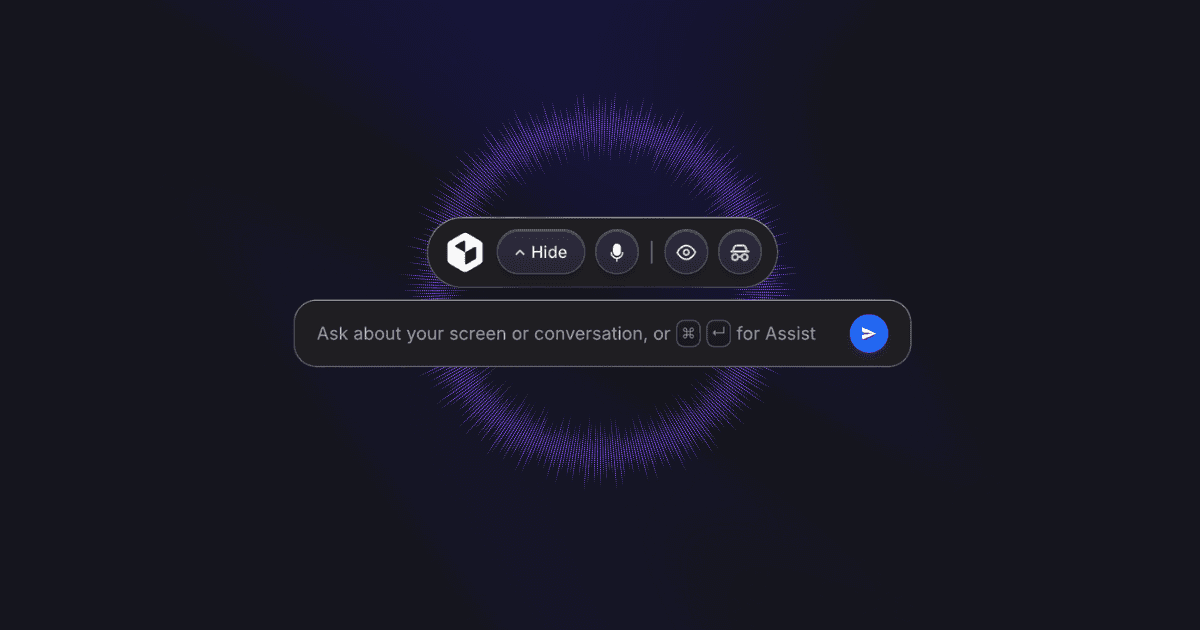
Picture this: you're on a sales call, and the prospect asks to see a demo of your product. You share your screen. Everything looks normal to them - your desktop, your browser, the demo. But on your side, floating above the shared window, you can see a live transcript of the conversation, the AI's suggested talking points, and a reminder about the prospect's budget from the document you uploaded earlier.
That's Raven's stealth overlay. It exists on your screen but doesn't exist on anyone else's.
Why this matters
The usefulness of a meeting copilot drops to zero the moment someone else can see it. If you're in a negotiation and the other party sees an AI suggesting your next move, the trust is gone. If you're interviewing a candidate and they see the AI evaluating their answers, the dynamic shifts completely. If you're on a support call and the customer sees you reading AI-generated responses, it feels impersonal.
Most meeting AI tools don't solve this problem well. Some run as a separate window that you have to manually hide before sharing your screen - and if you forget, it's visible. Others join the call as a bot participant, which everyone can see. Some browser extensions inject UI directly into the meeting app, where it shows up in screen recordings.
Raven's approach is different. The overlay is invisible to screen capture at the OS level. You don't have to remember to hide it, switch windows, or set up any workarounds. It's just not there as far as screen sharing is concerned.
How it works technically
When stealth mode is enabled (which it is by default), Raven calls Electron's setContentProtection(true) on both the overlay window and the dashboard window.
On macOS, this sets the window's sharing type to none, which instructs the operating system to exclude the window from all screen capture APIs. Any app that uses CGDisplayStream, SCShareableContent, or any of Apple's official screen recording mechanisms will not see the Raven windows. This covers Zoom, Google Meet, Microsoft Teams, Discord, Loom, QuickTime, OBS, and any other recording or streaming software.
On Windows, the equivalent is SetWindowDisplayAffinity with the WDA_EXCLUDEFROMCAPTURE flag. This achieves the same result - the window is excluded from all screen capture, including DirectX-based capture, BitBlt capture, and the Windows Graphics Capture API.
In addition to content protection, stealth mode also:
Hides the tray icon - so there's no Raven icon in your system tray that someone might notice on your screen share
Hides the dock icon on macOS - so Raven doesn't appear in your dock when you show your desktop
Maintains always-on-top - the overlay stays on top of all windows, including full-screen meeting apps, using the
screen-saverwindow level
The overlay window itself
The overlay is created as a type: 'panel' window on macOS, which means it floats above normal windows without stealing focus. It's set to setAlwaysOnTop(true, 'screen-saver', 1) - the highest possible window level - and setVisibleOnAllWorkspaces(true, { visibleOnFullScreen: true }) so it stays visible even when you switch desktops or go full-screen.
The window is transparent and frameless, so it blends naturally with whatever is behind it. You can move it around with keyboard shortcuts (Cmd+Arrow Keys) and scroll through content with Cmd+Shift+Up/Down.
When you don't want stealth
Sometimes you want the overlay to be visible. If you're running a demo of Raven itself, showing a colleague how it works, or doing a collaborative session where everyone benefits from seeing the transcript, you can turn stealth mode off in the settings. The overlay immediately becomes visible to screen capture and the tray/dock icons reappear.
You can also toggle it quickly during a session if you need to switch between stealth and visible modes.
The default matters
We made a deliberate choice to have stealth mode enabled by default. When you install Raven and start your first recording, the overlay is already invisible to screen sharing. You don't have to find a setting, read documentation, or configure anything.
This is important because the worst time to discover your meeting AI is visible is during a live call when you've already shared your screen. By making stealth the default, that can never happen.
Chaitanya Laxman
Product
Share